
Posting schedule
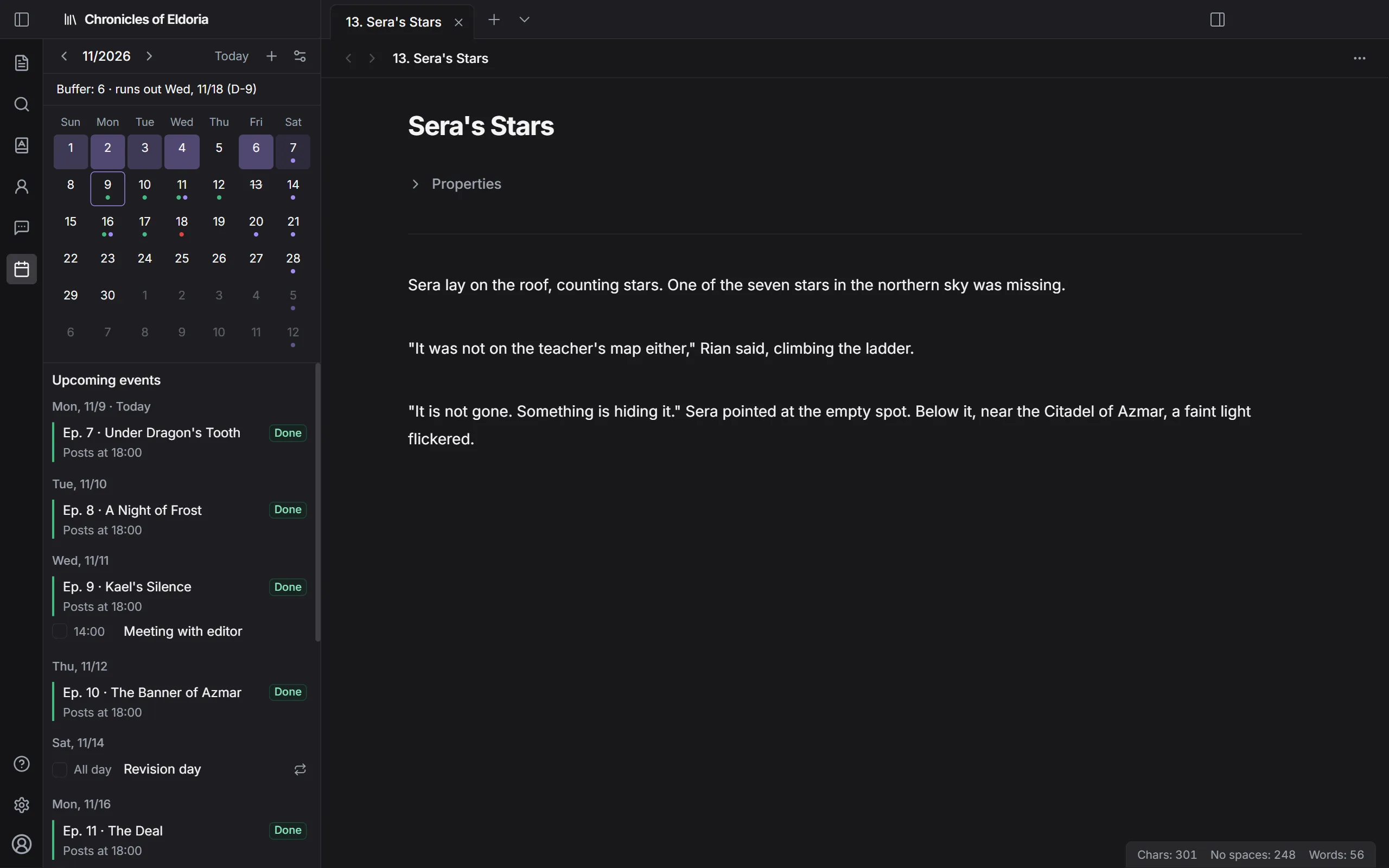
Click Schedule on the ribbon to open a calendar in the sidebar. It shows posting dates, your buffer, your own events, and how much you wrote each day.
Set up your serial
Section titled “Set up your serial”- Click Serial settings.
- Set the Posting days, Posting time, and Serial start date.
- Save.
Each posting day on the calendar shows which episode goes up that day.
Check your buffer
Section titled “Check your buffer”Once your serial is set up, a line above the calendar shows your buffer, for example:
Buffer: 4 · runs out Fri, 10/24 (D-5)
- Buffer is the number of consecutive episodes with the Done status, counted from the next one to post. Change an episode’s status in Episode properties.
- Runs out is the first posting day with no Done episode left to post.
Take a break
Section titled “Take a break”Click a posting day on the calendar and click Take a break this day. That day is skipped and episodes move to the next posting day. Click Cancel break to undo.
Add an event
Section titled “Add an event”- Click New event, or choose a date and click Add an event on this day.
- Set the Title and Date. Turn on Time to set a time; leave it off for an All day event.
- To repeat, choose Daily, Weekly, or Monthly in Repeat. For Weekly, also choose the days. Set Repeat until if it ends.
- Click Save.
Use Mark as done for finished events. When deleting a recurring event, choose Delete this day only or Delete all repeats.
When no date is selected, you see Upcoming events for the next 14 days.
Writing log
Section titled “Writing log”Choose a day you wrote to see “Chars written”. It’s how much your manuscript grew that day, minus what you deleted. Days with more writing are shaded darker on the calendar.