
Relation map
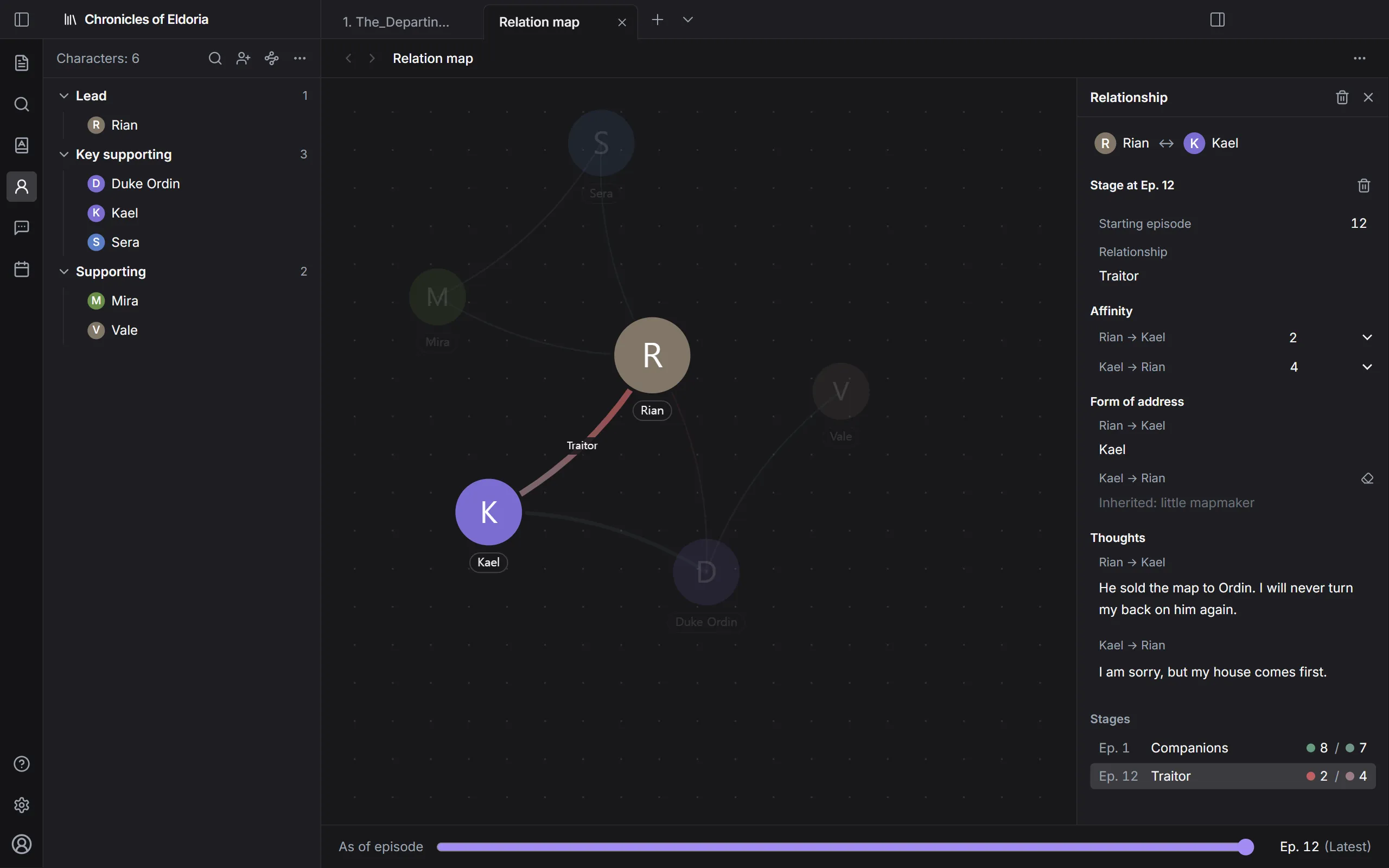
The relation map shows relationships between characters as lines. Relationships can change over the story, so you record them in stages.
Open the relation map
Section titled “Open the relation map”Click Characters on the ribbon, then click Relation map above the list.
Create a relationship
Section titled “Create a relationship”On the relation map
- Right-click a character and click Link characters.
- Click the other character. Press
Escto cancel. - Type a relationship name (for example: colleague, rival) and press
Enter.
In a character’s editor tab
- Click Add relationship in the Relationships section.
- Enter the Other character, the First stage episode, and the relationship name.
- Click Create.
What a relationship holds
Section titled “What a relationship holds”Click a line to open the relationship panel on the right.
| Field | Description |
|---|---|
| Relationship | The relationship name |
| Affinity | From 1 (hostile) to 10 (friendly), recorded separately for each direction |
| Form of address | What they call each other, for each direction |
| Thoughts | What each thinks of the other, for each direction |
The line color shows affinity. If the two sides differ, each end of the line has a different color.
Relationships that change
Section titled “Relationships that change”A relationship is divided into Stages. For example, “colleague” from episode 1 and “rival” from episode 12.
- Add a stage in Stages and set the episode it starts at.
- Fields you leave empty in a new stage are inherited from the previous stage.
- To clear a value from an earlier stage, click Clear from this stage on.
Choose an episode in As of episode above the map to see relationships at that point. Choose Latest for the most recent state.
Delete a relationship
Section titled “Delete a relationship”Click Delete relationship in the panel. All stages are deleted, and this can’t be undone.