
A tour of the screen
The Loreve screen has five parts. This guide uses the names below.
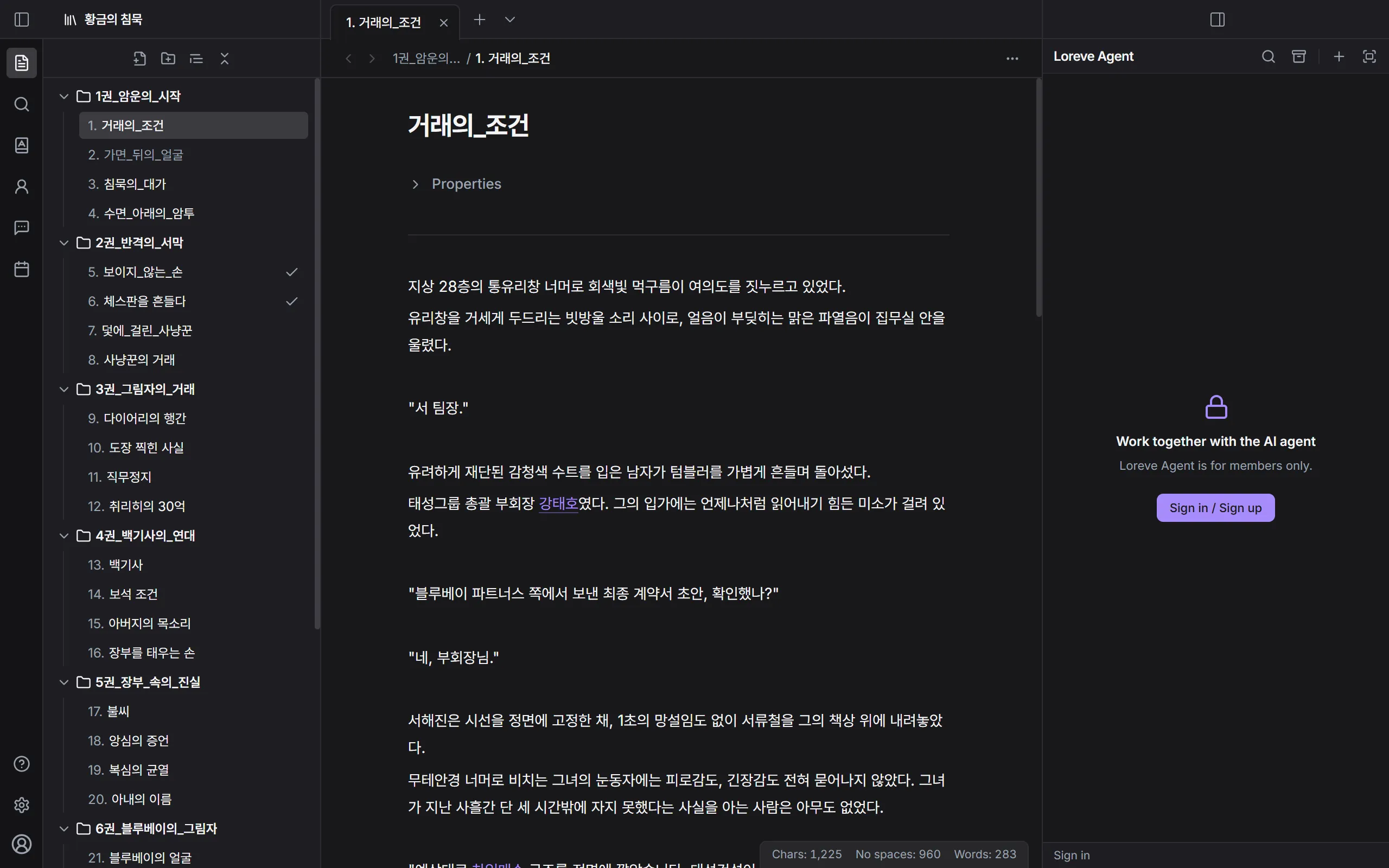
Title bar
Section titled “Title bar”The top row of the window.
- Title: The project that’s open. Click it to switch to another project or open Manage vaults….
- The buttons at both ends collapse and expand the left sidebar and the agent panel on the right.
Ribbon
Section titled “Ribbon”The row of icons on the far left. The icon you click decides what the sidebar shows.
| Icon | Sidebar shows |
|---|---|
| Manuscripts | Volumes and episodes |
| Search | Global search |
| Codex | Places, terms, factions, and other entries |
| Characters | Characters and the relation map |
| Notes | Your notes |
| Schedule | Calendar and posting schedule |
At the bottom are Help, Settings, and your account icon.
Sidebar
Section titled “Sidebar”The list to the right of the ribbon. Click an item to open it in the middle. Drag the edge to change the width, and double-click it to go back to the default width.
Editor
Section titled “Editor”Open episodes, notes, characters, and codex entries in the middle. You can open several documents as tabs and split the screen into left and right. See Tabs, split view, and focus mode.
The character count of the current document is at the bottom right.
Agent panel
Section titled “Agent panel”The Loreve Agent panel on the right. Chat with the AI agent and get suggested edits here. See Get started with the agent.